 Handling envelopesDriver settings for WindowsDriver settings for Mac OS X
How to Print
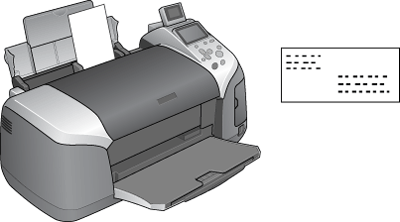
Refer to the section below for loading envelopes.
 | Loading Envelopes |
Refer to the section below for the printable area. See Printable area
 | Access the printer driver. |
| Accessing the Printer Software for Windows |
 | Click the Main tab, then make the Quality Option setting. See online help for details. |
 | Select Sheet as the Source setting. |
 | Select Plain Paper as the Type setting. |
 | Select the appropriate envelope size from the available Size settings. You can also define a custom paper size. For details, see the following section. |
| Making User Defined Paper Sizes for Windows |
 | Select Landscape as the Orientation setting. |
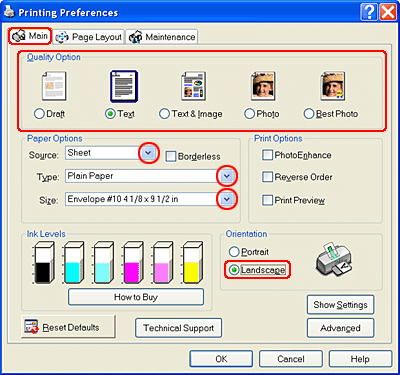
 | Click OK to close the printer driver settings dialog box. |
 | Print your data. |
 |  | Note: |
| |
|
|
| Access the Page Setup dialog box. |
| Accessing the Printer Software for Mac OS X |
|
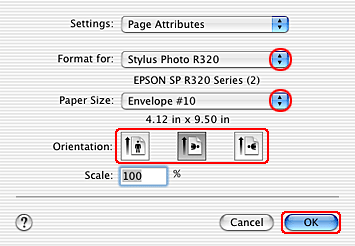
| Select Stylus Photo R320 as the Format for setting. |
|
| Select the appropriate envelope size as the Paper Size setting. |
|
| Select Landscape as the Orientation setting. |
|
| Click OK to close the Page Setup dialog box. |
|
| Access the Print dialog box. |
| Accessing the Printer Software for Mac OS X |
|
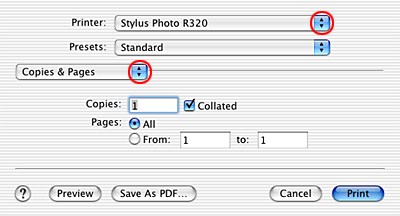
| Select Stylus Photo R320 as the Printer setting, then make the Copies & Pages settings. |
| | Note: |
| |
|
|
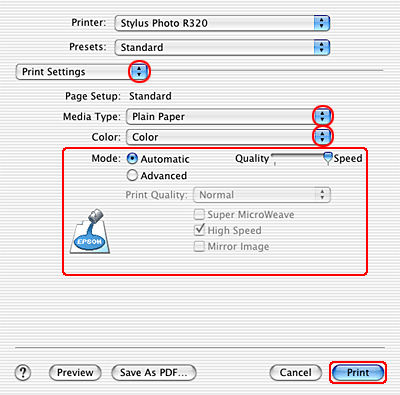
| Select Print Settings from the pop-up menu. |
 | Select Plain Paper as the Media Type setting, then make the appropriate Color and Mode settings. |
 | Click Print to start printing. |
 Previous |
