How to Print
Printing on CD/DVD
 Notice for CD/DVD printing
Accessing EPSON Print CD
Positioning the CD/DVD
Printing on a CD/DVD for Windows
Printing on a CD/DVD for Mac OS X

EPSON Print CD bundled with this printer allows you to create CD/DVD labels. After you create the CD/DVD label data, you can print on 12-cm CD/DVD and 8-cm CD/DVD with this printer. Follow the steps described below for CD/DVD printing.
When printing on CD/DVD, keep the following points in mind:
Notice for CD/DVD printing
-
Use only CD/DVD labelled as suitable for printing, for example "Printable on the label surface" or "Printable with ink jet printers".
-
For more details on handling CD/DVD and guidelines for writing data to a CD/DVD, refer to your CD/DVD documentation.
-
A lower level of color saturation is used to ensure print quality when printing on a CD/DVD, as opposed to Epson special paper.
-
Do not print on the CD/DVD before writing your data to it. If you do, fingerprints, dirt, or scratches on the surface may cause errors while writing data.
-
Try to test printing on a spare CD/DVD.
-
The printed surface is easily smeared immediately after printing.
-
Be sure to let CDs and DVDs dry completely before using them or touching the printed surface.
-
Do not let the printed CD/DVD dry in direct sunlight.
-
Depending on the CD/DVD type, smearing may occur depending on the level of color saturation.
-
If the printed surface is sticky even after it has dried, the color saturation level may be too high. In that case, lower the level of the color saturation in EPSON Print CD.
-
Moisture on the printable surface may cause smearing.
-
If you are going to print a large amount of CD/DVD, first print on a few spare CD/DVD and check the printed surface after one full day.
-
If the CD/DVD tray or the internal transparent compartment are accidentally printed on, immediately wipe off the ink.
-
Reprinting on the same CD/DVD may not improve the print quality.
-
The printable area of a CD/DVD is illustrated as follows.
|
12-cm CD/DVD
|
8-cm CD/DVD
|
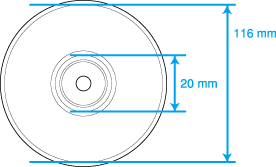
|
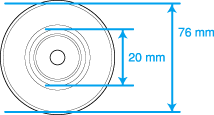
|

[Top]
Accessing EPSON Print CD
For Windows
To access EPSON Print CD, double-click the EPSON Print CD icon on the desktop.
 |
Note:
|
 | |
If the EPSON Print CD icon does not appear on the desktop, click Start, point to Programs (Windows Me, 98, and 2000) or All Programs (Windows XP), point to EPSON Print CD, and then click EPSON Print CD.
|
|
For Mac OS X
To access EPSON Print CD, double-click the Macintosh HD (default hard disk) icon, double-click the Applications folder, then the EPSON Print CD folder, then the EPSON Print CD.
[Top]
Positioning the CD/DVD
Follow the steps below to insert the CD/DVD into this printer.
 |
Caution:
|
| -
Be sure to insert the CD/DVD following the steps described below. If you insert the CD/DVD in a different way, the data or printer may be damaged.
|
|
 |
Make sure that the printer is on.
|
| |
Caution:
|
| | |
Be sure to insert the CD/DVD tray while the power is on. Otherwise, automatic print position adjustment may not take place after inserting the CD/DVD tray.
|
|
 |
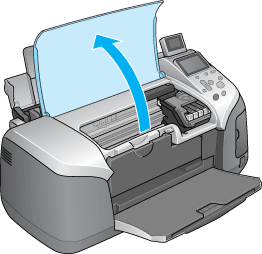
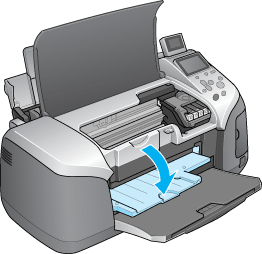
Open the printer cover then pull down the CD/DVD guide.
|
 |
Place the CD/DVD on the CD/DVD tray with the label surface up.
|
| |
Note:
|
| | |
Use one CD/DVD at a time.
|
|
|
12-cm CD/DVD
|
8-cm CD/DVD
|
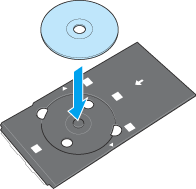
|
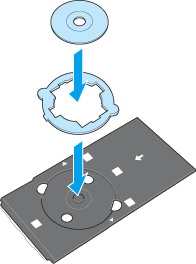
|
It is necessary to use the 8-cm adapter in conjunction with the CD/DVD tray when printing on 8-cm CD/DVD's. There are three tabs protruding from the perimeter of the 8-cm adapter; two round tabs diagonally opposite each other, and one small rectangular tab. The round tabs correspond to the semi-circular holes in the CD/DVD tray. Holding the 8-cm CD/DVD adapter so that the semi-circular tabs fit into the semi circular holes, insert the 8-cm adapter into the CD/DVD tray, as if it were a CD. The single rectangular tab should also fit neatly into the indentation at either the top or the bottom of the CD/DVD tray. To remove the adapter, gently push upwards on the round tabs.
| |
Caution:
|
| | -
Before positioning the CD/DVD, make sure that no foreign particles or substances are on the CD/DVD tray, as these may damage the CD/DVD's data side.
|
|
| | -
Be sure to use the CD/DVD tray provided with this printer. If you use another CD/DVD tray, there may be a gap in the print position and printing may not be performed properly.
|
|
 |
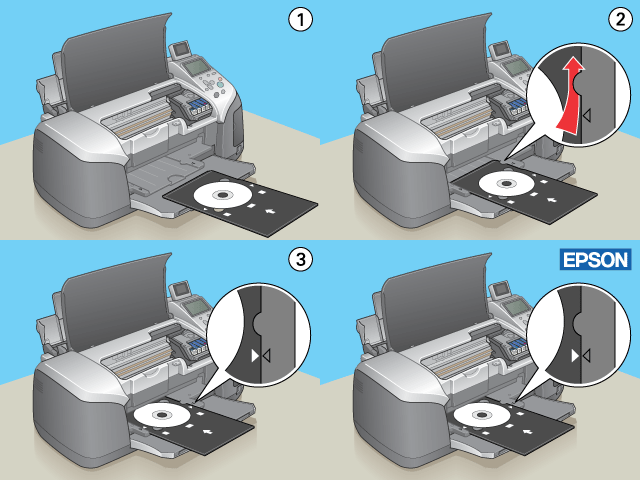
With the CD/DVD loaded printable side up, gently insert the CD/DVD tray along the base of the CD/DVD guide until the marks on the CD/DVD tray and the CD/DVD guide match each other.
|
| |
Note:
|
| | |
Insert the CD/DVD tray so that the CD/DVD tray passes under the small rollers on the both sides of the CD/DVD slot.
|
|
 |
Close the printer cover.
|
[Top]
Printing on a CD/DVD for Windows
EPSON Print CD lets you print images on CD/DVD. The following instructions explain how to print on a CD/DVD using EPSON Print CD.
Making the Basic settings
|
|
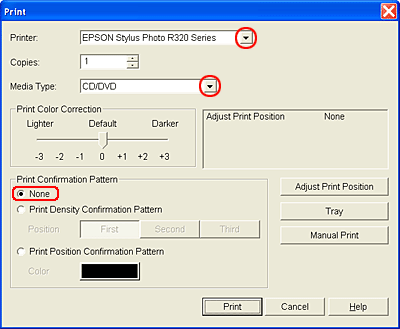
Click Print on the File menu. The Print dialog box appears.
|
|
|
Make sure that EPSON Stylus Photo R320 Series is selected as the printer.
|
|
|
Select CD/DVD or CD/DVD Premium Surface as the Media Type setting.
|
|
|
Make sure None is selected as the Print Confirmation Pattern setting, and then click Print.
|
|
Note:
|
| -
If you select CD/DVD Premium Surface as the Media Type setting in the Printer Settings dialog box and use a high quality CD/DVD, you can create high quality CD/DVD labels.
|
|
| -
Be sure to let CDs and DVDs dry completely before using them or touching the printed surface. CDs and DVDs printed using CD/DVD Premium Surface as the Media Type setting take longer to dry than those printed using CD/DVD as the Media Type setting. Allow CDs and DVDs printed using the CD/DVD Premium Surface setting to dry for 24 hours.
|
|
| -
If the print position is misaligned, adjust it using EPSON Print CD.
For details, see the EPSON Print CD Help. You can also use the CD/DVD Print Position Check sheet that came with this product to check the print position.
|
|
| -
If the ink smears, adjust the color saturation. For details, see the EPSON Print CD Help.
|
|
| -
After you finish printing on a CD/DVD, remove the CD/DVD tray and close the CD/DVD guide.
|
|
Making the Advanced settings
You can make more complex settings using the printer driver.
|
|
Click Print on the File menu. The Print dialog box appears.
|
|
|
Click the Manual Print button.
|

|
|
Make sure that EPSON Stylus Photo R320 Series is selected as the Name setting.
|
|
|
Select A4 as the Size setting.
|
|
|
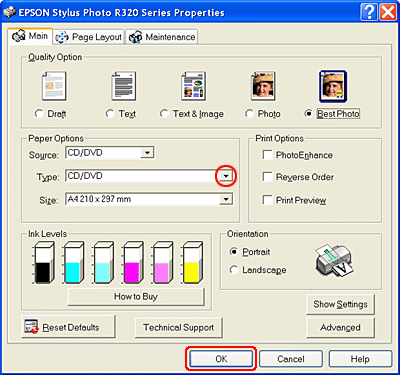
Select CD/DVD as the Source setting.
|
 |
Select Portrait as the Orientation setting.
|

 |
Click Properties to access the printer driver.
|
 |
Select CD/DVD or CD/DVD Premium Surface as the Type setting.
|
 |
Adjust other settings as necessary.
|
 |
Click OK to close the printer driver.
|
 |
Click OK to print the file.
|
[Top]
Printing on a CD/DVD for Mac OS X
Making the Basic settings
|
|
Select Print from the File menu. The Print dialog box appears.
|
|
|
Click Select Printer.
|
|
|
Select Stylus Photo R320 from the printer pop-up menu.
|
|
|
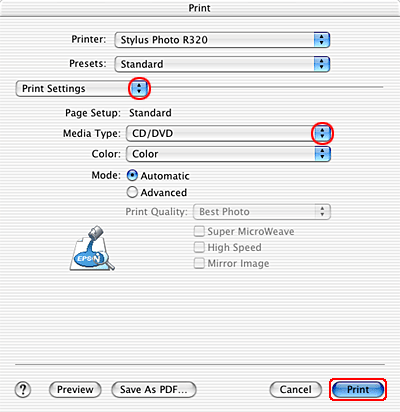
Select CD/DVD or CD/DVD Premium Surface as the Media Type setting.
|
|
|
Make sure None is selected as Test Print Pattern setting and click Print.
|

|
Note:
|
| -
If you select CD/DVD Premium Surface as the Media Type setting in the Printer Settings dialog box and use a high quality CD/DVD, you can create high quality CD/DVD labels.
|
|
| -
Be sure to let CDs and DVDs dry completely before using them or touching the printed surface. CDs and DVDs printed using CD/DVD Premium Surface as the Media Type setting take longer to dry than those printed using CD/DVD as the Media Type setting. Allow CDs and DVDs printed using the CD/DVD Premium Surface setting to dry for 24 hours.
|
|
| -
If the print position is misaligned, adjust it using EPSON Print CD.
For details, see the EPSON Print CD Help. You can also use the CD/DVD Print Position Check sheet that came with this product to check the print position.
|
|
| -
If the ink smears, adjust the color saturation. For details, see the EPSON Print CD Help.
|
|
| -
After you finish printing on a CD/DVD, remove the CD/DVD tray and close the CD/DVD guide.
|
|
Making the Advanced settings
You can make more complex settings using the printer driver.
|
|
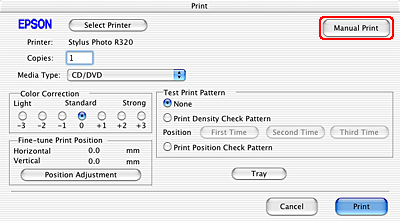
Click Print on the File menu. The Print dialog box appears.
|
|
|
Click Manual Print to access the Page Setup dialog box.
|
|
|
Make sure that Stylus Photo R320 is selected as the Format for setting.
|
|
|
Select A4 as the Paper Size setting.
|
|
|
Select Portrait as the Orientation setting.
|
|
|
Click OK to access the Print dialog box.
|

|
|
Make sure that Stylus Photo R320 is selected as the Printer setting.
|
|
|
Select Print Settings from the pop-up menu.
|
|
|
Select CD/DVD or CD/DVD Premium Surface as the Media Type setting.
|
|
|
Adjust other settings as necessary and click Print.
|
[Top]


 See
See