 Using the Control PanelFor WindowsFor Mac OS X
Replacing the Photo Cartridge
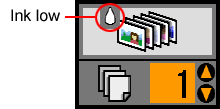
When the photo cartridge is low on ink, you see this icon in the upper-left corner of the LCD screen.
You can check the approximate ink level in your photo cartridge at any time.
 |
Press the Mode button to select  . .
|
 |
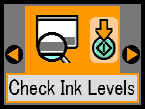
Press the  or or  button to select Check Ink Levels, then press the button to select Check Ink Levels, then press the  Start button. Start button.
|
 |
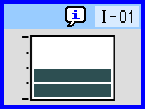
You see a screen showing the approximate ink level in your photo cartridge. Press the Start button to close the screen.
|
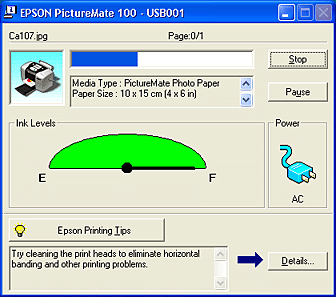
You can check the amount of ink remaining in the photo cartridge using EPSON Status Monitor 3 or the progress meter. Refer to the appropriate section below for details.
Access EPSON Status Monitor 3 in one of the following ways.
 See Monitoring Preferences
A graphic displays the remaining amount of ink.
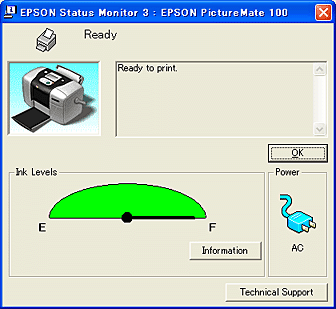
The progress meter dialog box appears automatically when you send a print job to the printer. You can check the remaining amount of ink from this dialog box.
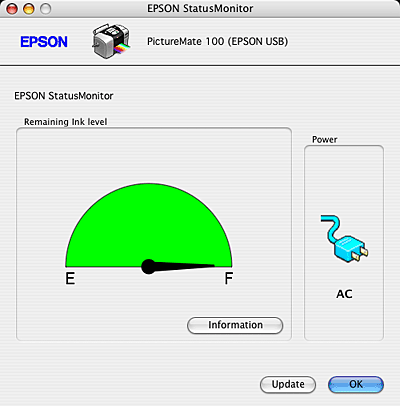
You can check the amount of ink remaining in the photo cartridge using EPSON StatusMonitor. Follow the steps below.
|
|
Access the EPSON Printer Utility dialog box. See For Mac OS X
|
|
| Click the EPSON StatusMonitor button. The EPSON StatusMonitor dialog box appears. |
 |  | Note: |
| |
|
 Next |
