  |
Knowledge
Base FAQ's & Technical Guides |
To confirm the cause of this error (displayed below) please follow the below instructions.

Firstly ensure the printer is switched on with no Red error lights. If any of the ink cartridges are empty they will need to be replaced. The printer will not work if there are any Red error lights.
Next please confirm that the USB cable is firmly connected into the printer and the MAC. Ensure that the USB cable is connected into the MAC and not the Keyboard. To confirm that the MAC is recognizing the Printer access the chooser. Click the Apple icon and select chooser.
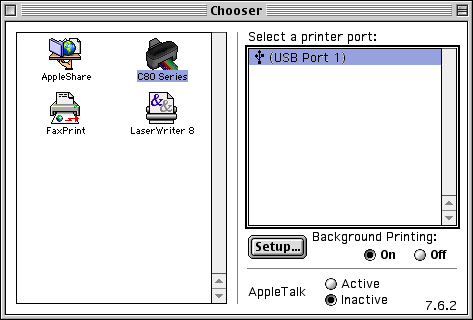
Your printer will need to be configured
like the example above, with Background printing on and
apple talk set to inactive. There must also be a valid
port available, in this case (USB Port 1).
If there is not a valid port in the chooser ensure the printer is on and
connected directly to the MAC.
If there is a valid port in your chooser and no error lights on the printer but you still get the error message it might be an Extensions conflict on your MAC. Please call Apple support for assistance with this.
Article: KB020110 Language: English Product Range: Ink Jet
