  |
Knowledge
Base FAQ's & Technical Guides |
If a paper jam occurs, first open the Automatic Document Feeder’s cover, remove any paper from the document table, then determine where the paper jam occurred.
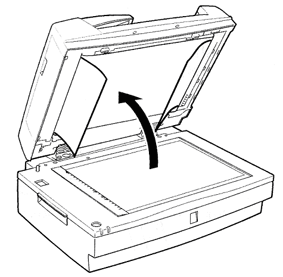
If paper jams at the feeder position: Open the left cover and carefully pull the jammed paper out of the feeder mechanism.
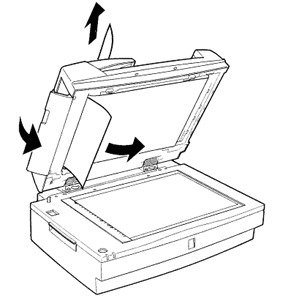
Note: Be careful not to pull too hard, otherwise the paper may tear, making it more difficult to remove.
If paper jams at the paper eject position: Open the right cover and carefully pull the jammed paper out if the feeder mechanism.
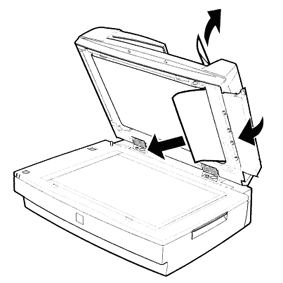
Note: Be careful not to pull too hard. If the paper tears, open the middle cover and remove the paper as shown as below.
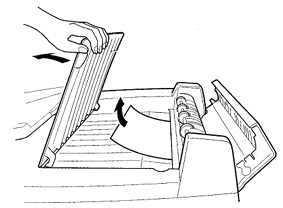
After removing the jammed paper, close the Automatic Document Feeder cover.
Article: KB020101 Language: English Product Range: Scanner
