Understanding EPSON TWAIN Features
Previewing Images
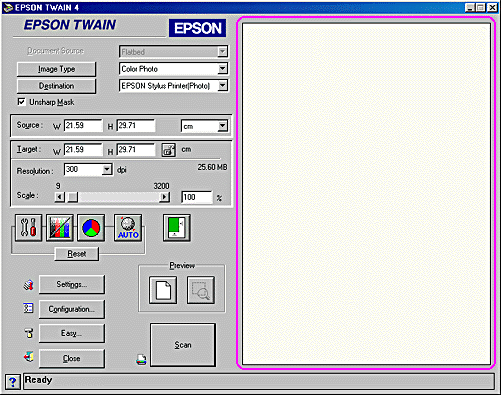
Before you scan and save an image, you can preview it in the Preview window located on the right side of the Advanced menu. Use the preview feature to check the results of your settings.

|
preview button
|

|
zoom preview button
|
-
To preview the entire image, click the preview button.
-
To preview a part of the image that is already in the Preview window, click and drag the mouse over the area you want to see in detail, and click the zoom preview button.
|
|
preview window |
 |
Note:
|
 | -
You cannot preview an image that exceeds available memory or disk space. If you attempt to preview an image that is too large, an alert appears on the screen.
|
| -
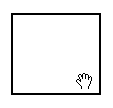
When the mouse pointer is placed within the marquee (the frame of the selected image area), it changes to a hand. You can click and drag the marquee anywhere in the Preview window.
|
| -
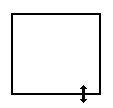
When the mouse pointer is placed on the edge of the marquee, it changes to an arrow allowing you to re-size the marquee.
|
| -
To remove or delete a marquee, double-click the preview window.
|
Modifying the preview image
You can see the effects of the following settings in the preview image.
-
Unsharp Mask in the EPSON TWAIN window
-
Pixel Depth, Halftone, and Dropout in the Image Type dialog box
-
Exposure, Gamma, Highlight, Shadow, and Threshold in the Image Controls dialog box
-
Tone Correction in the Tone Correction dialog box
-
Gray Balance Intensity, and Saturation in the Color Adjustment dialog box
|
Note:
|
|
Although the image in the Preview window changes as you make settings, the settings do not affect the actual image until you scan, or re-scan, the image.
|

[Top]

