Understanding EPSON TWAIN Features
Configuration
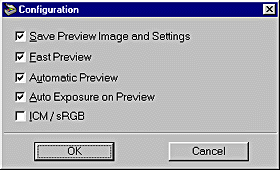
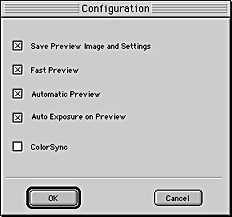
Click the Configuration button on the Advanced menu to view the following dialog box. You can make settings that affect the Preview window.
|
|
Windows |
|
|
Macintosh |
Save Preview Image and Settings:
Select this check box to automatically save the preview image and all the image settings when you exit EPSON TWAIN (quit scanning). The next time you restart EPSON TWAIN, the image and settings will reappear.
Fast Preview:
Enables high-speed loading of the preview image. If this is selected, the preview image is scanned in Draft mode. If this is not selected, the preview image is scanned in Best mode, and you can get accurate values for the Highlight, Shadow, and Gray Balance Intensity by sampling with the eyedropper in the preview image.
Do not use this feature (do not select the check box) when quality is more important than speed.
Automatic Preview:
Previewing automatically starts when EPSON TWAIN is launched.
Auto Exposure on Preview:
Displays the preview image with automatically optimized exposure settings. The result is the same as if you clicked the Auto Exposure button.
ICM, ICM/sRGB (for Windows)
Depending on the version of Windows installed in your computer, this setting may be unavailable or have a different caption.
Select this check box to reproduce the colors in your image using the Windows ICM color management system. This setting appears only with Windows.
 |  |
Note:
|
| | -
If your printer and monitor do not support ICM, be sure this check box is cleared.
|
ColorSync (for Macintosh)
Select this check box to reproduce the colors in your image using the ColorSync color management system. This setting appears only with Macintosh.
| |
Note:
|
| |
If your printer and monitor do not support ColorSync, leave this check box clear.
|

[Top]
