
Understanding EPSON TWAIN Features
Click the Auto Locate button on the Advanced menu to cause the scanner to automatically locate and select the target image. The image appears without white borders in the Preview window.
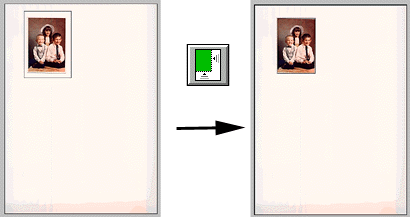 |
|
| entire preview area | located image |
 | Note: |
 | The Auto Locate feature is automatically activated when scanning from the Easy menu. |
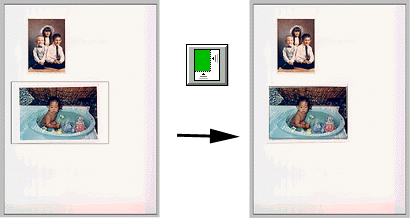
If a document contains more than one image, select a target image by placing the mouse pointer over the image and clicking the Auto Locate button. The selected target image is located automatically.
 |
|
| target image and other image |
located and non-located images |
 Previous |
 Next |
