Understanding EPSON TWAIN Features
Tone Correction

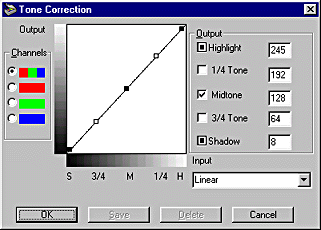
Click the Tone Correction button on the Advanced menu to view the following dialog box.
 |
Note:
|
 | -
The Linear Tone Correction settings are used when you scan from the Easy menu.
|
| -
The Tone Correction button appears dimmed and is not available when Pixel Depth is set to Black & White, Halftone is set to None, and TET (Text Enhancement Technology) is selected in the Image Type dialog box.
|
| -
You can see the effects of the Tone Correction settings in the Preview window.
|
The tone value represents the contrast in the tonal relationship between an original image and its reproduction on a monitor or printer.
Tone Curve editor:
The editor allows you to customize tone correction. Drag points on the tone curve to adjust the tone value. You can edit up to five tonal elements.
Output options:
If you select the check box for a specific point, such as 1/4 Tone or Midtone, you can move that point and it will remain where you leave it; it will not be affected by the movement of other points on the curve. If the check box is cleared, the point will be affected by the movement of other points.
Channels options:
You can select the combined red, green, and blue (RGB) channel to modify all colors, or select these colors separately.
| |
Note:
|
| |
If Pixel Depth is set to Black & White or 8-bit Gray in the Image Type dialog box, you can only select the combined RGB channel option.
|
Tone correction list:
Select a tone correction setting from this list. The custom settings you have saved appear in this list.
OK/Save/Delete/Cancel buttons:
To accept the defining Tone Correction or close the dialog box,
click OK.
After you correct tone, type a name for your custom settings in the tone correction list and click Save.
To delete a setting, select the name of the setting you want to delete in the tone correction list and click Delete.
To cancel the operation, click Cancel.

[Top]

