  |
Knowledge
Base FAQ's & Technical Guides |
How to select different languages, change the paper length and switch the line feed on / off on DFX 5000+ dot matrix printer?
To set these settings you have to change DIP switches
DIP switch 1
Switch Description ON OFF
1-1 Printer mode IBM* ESC/P
1-2 Draft printing speed Normal High
1-3 Character quality NLQ Draft
1-4 Character table(in Epson ESC/P mode)(For setting in IBM* mode, see
table E.) See table A
1-5
1-6
1-7
1-8
DIP switch 2
Switch Description ON OFF
2-1 Shape of zero Slashed Not slashed
2-2 Input buffer enable No Yes
2-3 Auto line feed Yes No
2-4 Interface type/parity See table B
2-5
2-6
2-7 Serial bit rate See table C
2-8
DIP switch 3
Switch Description ON OFF
3-1 Page length See table D
3-2
3-3 Skip-over-perforation Skip No Skip
3-4 Paper memory (*) Memory 2 Memory 1
3-5 Overlapping multi-part forms Yes No
3-6 Multi-part forms with label Yes No
3-7 Skip over binding Yes No
3-8 Automatic tear off Yes No
Table D
Page Length SW 3-1 SW 3-2
11 inches OFF OFF
12 inches OFF ON
8.5 inches ON OFF
70/6 inches ON ON
What is the exact set-up for the DIP switches ?
1. Turn off the printer
2. Open the printer’s front cover by lifting the middle of its bottom
edge up until it locks in place.
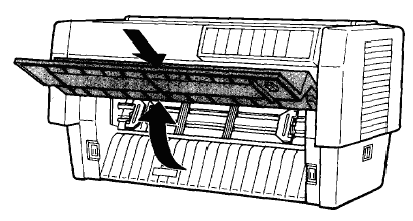
3. The DIP switches are located in a small compartment on the front paper guide, behind the front tractor paper. If paper is loaded on the front tractor, either remove it or lift it up out of the way so you can reach the DIP switches.
4. Open the DIP switch cover

5. Use a pointed instrument, such as the tip of a ballpoint pen, to turn the switch either on or off. A DIP switch is on when it is up, and off when it is down.

6. Close the DIP-switch cover and replace the paper
7. Next, close the front cover
8. Turn on the printer to initialise the new settings. When you change
a DIP-switch setting, the new settings take effect only after you turn
on or reset the printer.
Article: KB020069 Language: English Product Range: Dot Matrix
