  |
Knowledge
Base FAQ's & Technical Guides |
How do I scan using the Transparency Unit
(TPU)?
You must ensure that the TPU is connected before the scanner is switched
on. In the EPSON TWAIN you need to select the relevant document source.
Instructions
With the scanner switched off, please connect the Transparency Unit (TPU). Now switch the scanner on and wait for it to initialise. When ready to scan open your program and access EPSON TWAIN. The examples used are with EPSON TWAIN PRO.
You will now need to change the field Document Source to the film type you are using (Positive/Negative). Then click Preview.
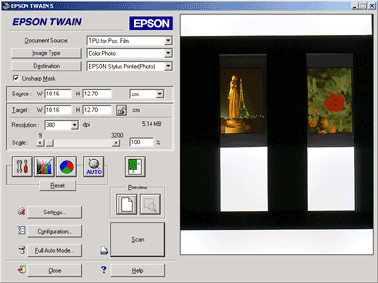
In the Preview windows use the Marquee tool to select the image that you wish to scan. Do this by clicking in the top left area of the picture, keep the mouse button help and drag to the bottom right area of the picture. It is important that you only select the image area and not the borders of the negative.
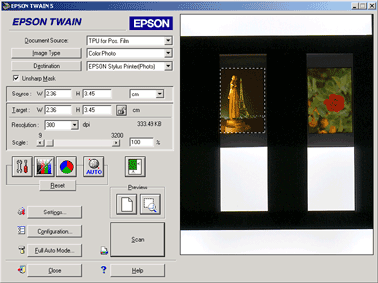
Once you have selected the required area you can zoom in by pressing the Preview button again. This will now preview the selected area.
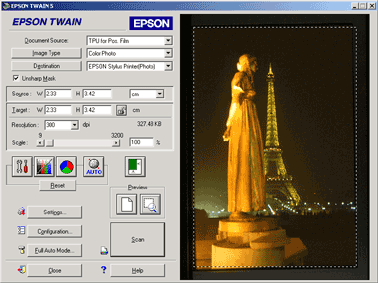
If satisfied with the preview click Scan to produce the final result.
Article: KB020026 Language: English Product Range: Scanner
